Quick Sift
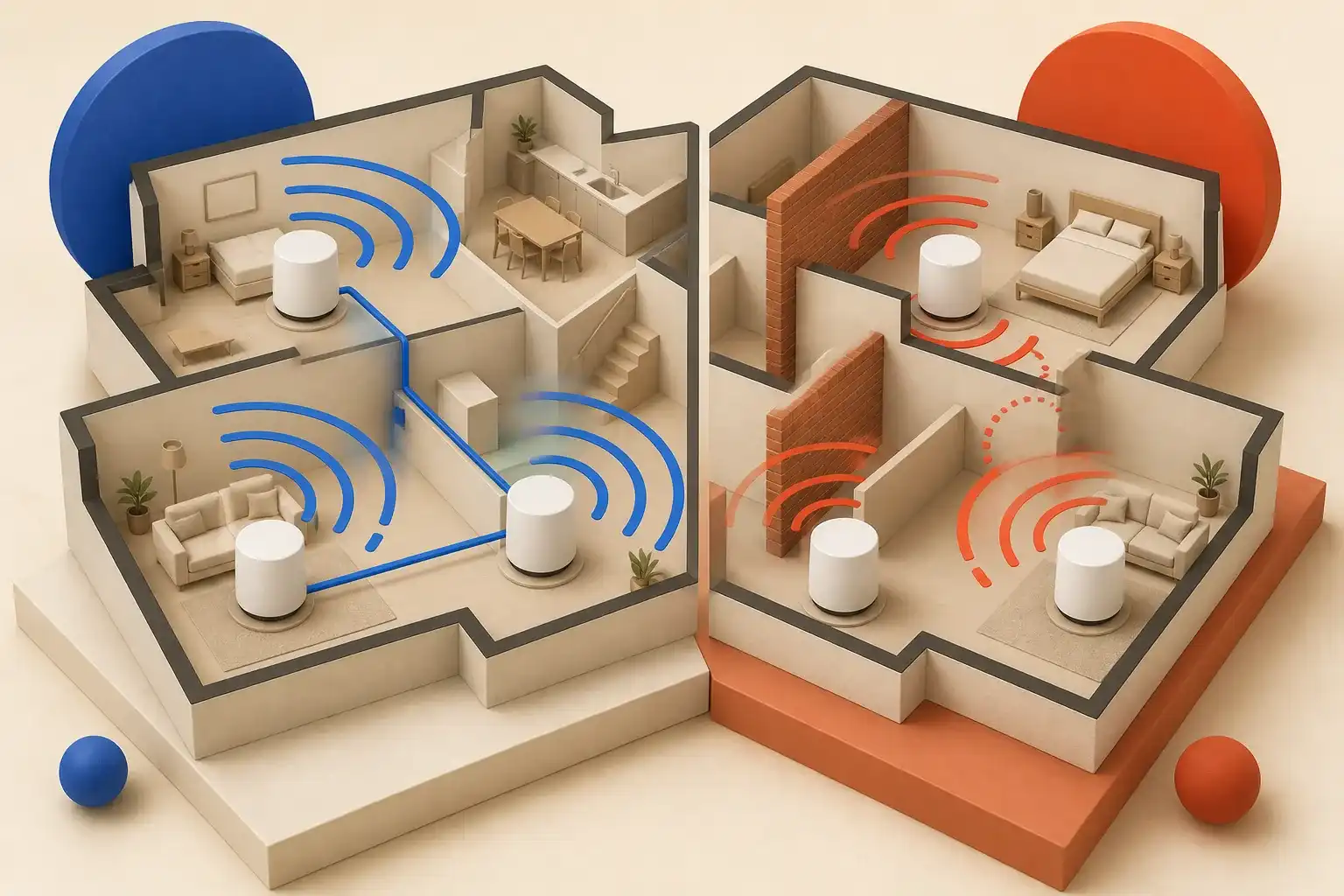
First improve the primary router location. Add mesh where walls, floors, or distance create real dead zones, and place nodes between good service and the problem—not inside the dead zone. Wired Ethernet backhaul is the most reliable option when available; wireless backhaul shares radio capacity and depends heavily on placement.
Options for different needs
These are different-fit reference options, not a ranking. BestSift earns a commission from qualifying purchases through these links. Our selections are research-based, not hands-on test results.
Amazon eero 6+ three-pack
Guided setup · compact nodes
TP-Link Deco X55 three-pack
Wired backhaul · more Ethernet ports
Mesh Wi‑Fi replaces the idea of one extremely powerful router with a coordinated set of access points. It can improve coverage across a long home, multiple floors, or dense walls—but it cannot manufacture bandwidth that never reaches a node. Every remote node needs a backhaul path to the main network, and every wireless device then shares the conditions around that node.
The useful planning sequence is coverage first, backhaul second, client needs third. Buying the largest node bundle before making that map can add interference and cost without solving the actual bottleneck.
Diagnose before replacing
Separate internet-service problems from Wi‑Fi problems. Test a computer by Ethernet at the primary router when possible. If wired performance is already poor, adding mesh does not repair the incoming service, modem, or provider congestion. If wired service is healthy but Wi‑Fi drops by room or floor, the local radio network is the likely constraint.
Move the existing router before buying. The FCC recommends a central location for coverage. Avoid closed cabinets, the floor behind furniture, large metal objects, and the far corner where service enters the building. A few feet of elevation and a more open position can materially change propagation.
Walk the home with the activities that matter: a work-call location, streaming television, gaming setup, security camera, patio, or smart-home hub. Signal bars are coarse. Use repeatable speed and latency tests, and note whether a device clings to a distant access point instead of roaming.
Construction shapes the network
Drywall and open wood framing are relatively forgiving. Masonry, concrete, metal lath, foil insulation, mirrors, radiant barriers, utility spaces, and multiple floors can attenuate or reflect signals. A mesh kit’s advertised coverage cannot account for those materials or neighboring networks.
Higher-frequency bands can provide greater capacity under good conditions while generally losing more strength through distance and obstacles. A lower band may reach farther but offer less clean spectrum. Modern mesh systems steer traffic among bands, yet they remain subject to physics.
For detached spaces, exterior walls and distance make an indoor wireless hop uncertain. Outdoor-rated access points, buried or aerial Ethernet/fiber installed correctly, or a point-to-point bridge may be more appropriate than adding another indoor mesh node near a window.
Understand backhaul
Backhaul is the link between a mesh node and the primary router or another upstream node. With Ethernet backhaul, that link uses a cable, preserving wireless airtime for client devices and providing predictable capacity. If the home is wired, check port speed, switch compatibility, and whether every node supports wired backhaul in the intended topology.
Wireless backhaul uses radio spectrum. Dual-band systems may share the same band between client traffic and inter-node communication. Tri-band designs can provide an additional band for backhaul, although actual allocation and fallback behavior vary. Marketing labels such as “dedicated” should be checked against the manual, especially when nodes cannot maintain their preferred band.
A wireless node belongs where it can still receive a strong upstream signal, not at the center of the dead zone. Think of it as a relay: it cannot forward a clean message it did not receive. A hallway outside a problem room may work better than the room’s far corner.
Estimate node count conservatively
One primary router plus one remote node can cover many ordinary layouts. Add nodes for distinct barriers or floor transitions, not because a bundle includes them. Too many nearby access points can increase contention and make roaming decisions less stable.
Place the first node, test, and then decide whether another is justified. In a multistory home, stagger nodes around stairs or open vertical paths rather than stacking them directly above one another without testing. Keep nodes in the open and respect ventilation and power requirements.
Roaming is a client decision as well as a network feature. Phones, laptops, and smart devices differ in how quickly they leave a weak access point. Standards-assisted roaming can help compatible clients, but it cannot force every older device to behave perfectly. Systems that expose signal or client-association information make troubleshooting easier.
Match ports and radios to the service
An internet plan faster than one gigabit requires compatible ports end to end to exceed gigabit rates over a wired path: modem or gateway, router WAN, LAN, switch, cable, adapter, and client. A mesh node advertised with very high aggregate wireless capacity may still have a one-gigabit Ethernet port.
Wi‑Fi generation affects available features and efficiency, but your clients determine what is usable. Buying the newest standard can improve longevity; it does not upgrade an older television’s radio. Check whether the system supports your mix of older 2.4 GHz smart devices and modern high-capacity clients without awkward setup workarounds.
For gaming, calls, or workstations, Ethernet from a node can improve the final client link while the node itself still uses wireless backhaul. That is not equivalent to end-to-end wired service. The backhaul remains a variable radio hop.
Software is part of the router
Routers sit at the boundary of the home network. Favor a manufacturer with a clear security-update policy, current support documentation, automatic update controls, and a way to see connected devices. Determine whether advanced security, parental controls, historical data, or even basic features require a subscription.
Setup should support a strong unique administrator credential and modern Wi‑Fi security. Change default credentials, install updates, disable remote administration you do not need, and use a separate guest or IoT network when the product supports it sensibly. Do not expose management interfaces to the internet without a specific, secured need.
Cloud-dependent apps simplify setup while creating account and continuity considerations. Check whether local management exists, what data is collected, how accounts are protected, and what happens if the internet is down. A router should continue routing local traffic and recover predictably after power loss.
Watch for ownership constraints
Some internet providers require or strongly integrate their gateway. Confirm whether it can use bridge or passthrough mode, whether provider voice or television service depends on it, and who will support the combined setup. Running a new router behind an existing router can create double network address translation, which may complicate gaming, remote access, or port forwarding.
Mesh systems are usually ecosystems: adding a node later may require a compatible generation or family. Verify expansion compatibility and the maximum practical node count. Consider power adapters, mounting, Ethernet runs, and battery backup for the modem and primary network if outages matter.
Buying checklist
- Test wired internet performance before blaming Wi‑Fi.
- Move the primary router to a central, open position if possible.
- Map dead zones, wall materials, floors, and high-priority devices.
- Prefer Ethernet backhaul where practical.
- Place wireless nodes within good upstream coverage.
- Check WAN/LAN port speeds against the service plan.
- Verify compatibility with older 2.4 GHz devices and wired clients.
- Review update policy, subscriptions, privacy, and local recovery.
- Add nodes incrementally instead of maximizing count from the start.
The best mesh system is one whose nodes have strong paths and useful positions. Plan those paths first. Once backhaul and placement are sound, even modest hardware can outperform a premium bundle scattered into weak corners.
Decision snapshot
Draw the wired entry point, problem rooms, dense walls, and devices that need low latency. First test whether relocating the existing router solves part of the issue. If not, plan nodes in open intermediate locations where they still receive a strong connection, rather than hiding them inside the dead zone. Prefer Ethernet backhaul when the home already has suitable cabling, and verify that ports, switches, and software support the intended topology. Check the vendor’s security-update commitment, administration requirements, and what continues working without cloud access. Add one node at a time and measure ordinary rooms, calls, and transfers after each change; additional overlapping radios can create new interference instead of new capacity.
Research shortlist
Products to consider
As an Amazon Associate I earn from qualifying purchases.These are research-based examples—not hands-on test results, promises of availability, or absolute rankings.
Amazon eero 6+ three-pack
A dual-band mesh example for shoppers who favor guided setup and compact nodes, while accounting for wireless backhaul capacity.
TP-Link Deco X55 three-pack
A dual-band Wi-Fi 6 system with three Ethernet ports per node for homes that can use wired backhaul or need more local connections.
TP-Link Deco X55 specifications
Sources reviewed
BestSift favors standards bodies, public agencies, official manuals, and primary manufacturer documentation. Accessed August 12, 2026.